

Trying Google Maps with Apple CarPlay in iOS 12
Published: 2018.09.23

Updating the iPhone to iOS 12
On September 13, Apple released iOS 12 for iPhones and iPads. The update made Google Maps available through Apple CarPlay. Apple CarPlay lets you use apps from your smartphone—including music, messaging, calls, and navigation—on your car’s display.
The navigation system in our Panamera is certainly usable, but it sometimes shows traffic in bright red only after we’re already stuck in it (a little late! lol), or sends us on routes that make us wonder why it’s taking us so far out of the way.
Whenever that happens, I open Google Maps on my iPhone, search for a route, prop the phone behind the steering wheel, and follow its directions. But the phone kept falling over whenever we stopped, and it was hard to get it in a comfortable line of sight (-_-). So the news that this update lets us use Google Maps through Apple CarPlay is a big deal for us.
Some of the things I like about Google Maps are:
・It shows up-to-date traffic information
・It suggests shortcuts and back roads, not just major routes
・It quickly reflects the latest road and traffic updates (such as the opening of the Takatsuki–Kobe section of the Shin-Meishin Expressway)
That’s the gist of it.
Trying Google Maps in the Panamera
My husband said, “Our new Panamera supports Apple CarPlay, so I’m going to try Google Maps,” and gave it a go right away. Here’s a quick look at how it went. To get started, you’ll need to:
・Update your iPhone to iOS 12
・Have a charging cable ready to connect your iPhone to the car
・Install the Google Maps app on your iPhone
Nothing too demanding—and chances are, many of you already have everything set up. My husband also pointed out that Porsche officially announced in 2015 that it would support Apple CarPlay, but not Google’s Android Auto. That means only iPhone users can use Google Maps navigation in a Porsche.
We connected the Panamera and iPhone, and there it was: Google Maps, right where it should be! (As you’d expect.)
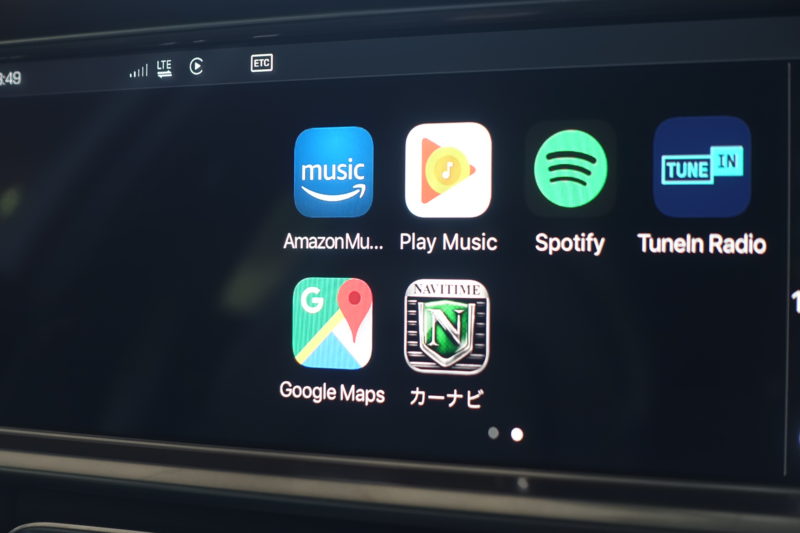
Google Maps appears on the display like this. It looks almost identical to the iPhone version.
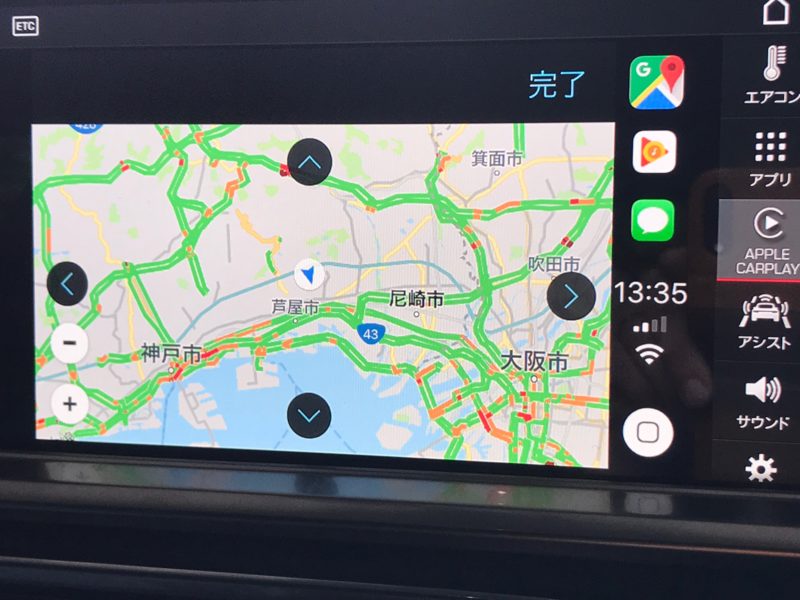
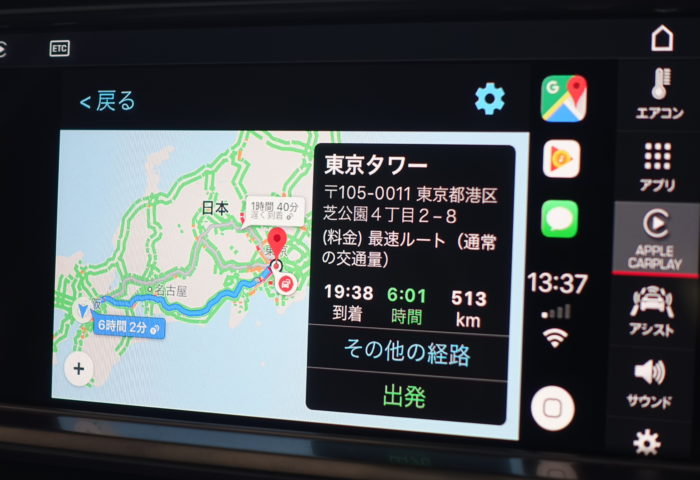
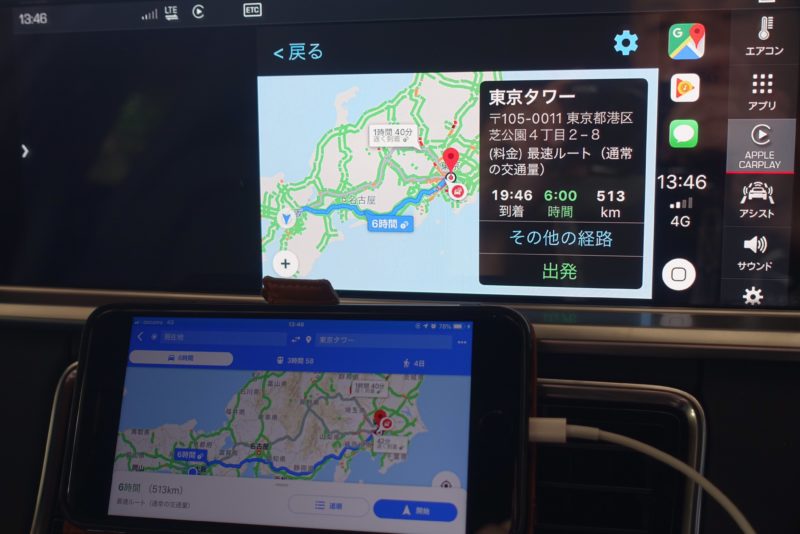
Scrolling felt a little clunky, so it’s probably easier to use the on-screen up and down buttons, as shown above, or operate the app on your iPhone. Google Maps lets you set a destination by voice. If you’d rather type it in, you can enter it on your iPhone, and the information will appear on the car’s display too. We tried saying “Tokyo Tower” and got these directions.
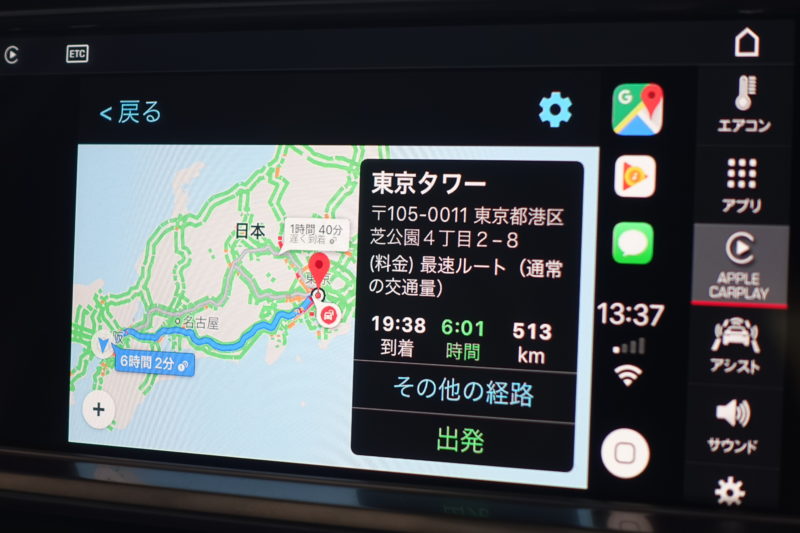
It’s closer than I expected! (lol) The route display on the iPhone and the car’s navigation screen is also pretty much the same, as you can see below.
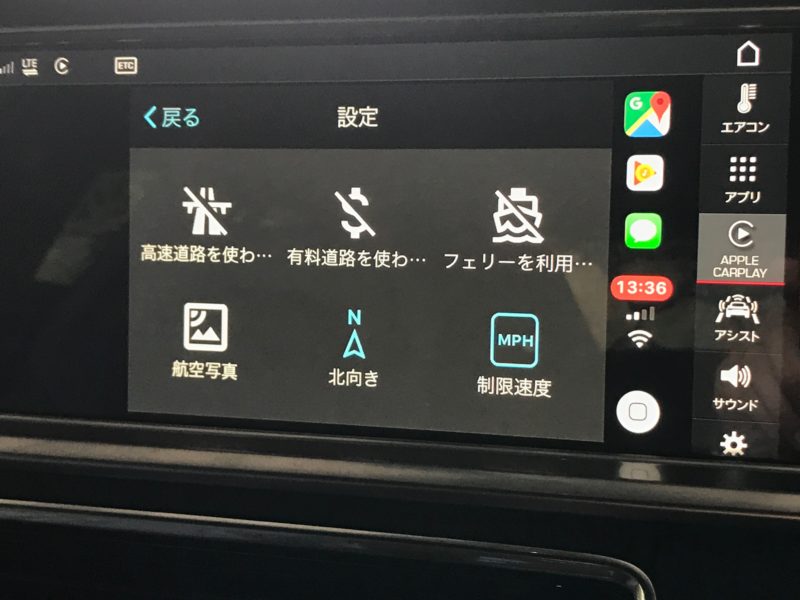
Just like a regular navigation system, you can set preferences such as “Avoid highways” and “Avoid toll roads.”
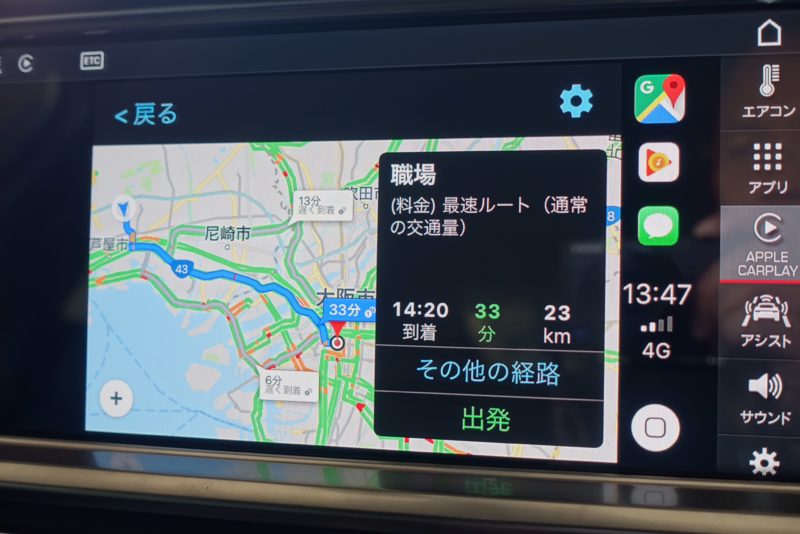
You can also select a saved destination to see a route based on current conditions.
NAVITIME Works with CarPlay, Too
NAVITIME’s Car Navi Time also supports Apple CarPlay, so we tried that as well.
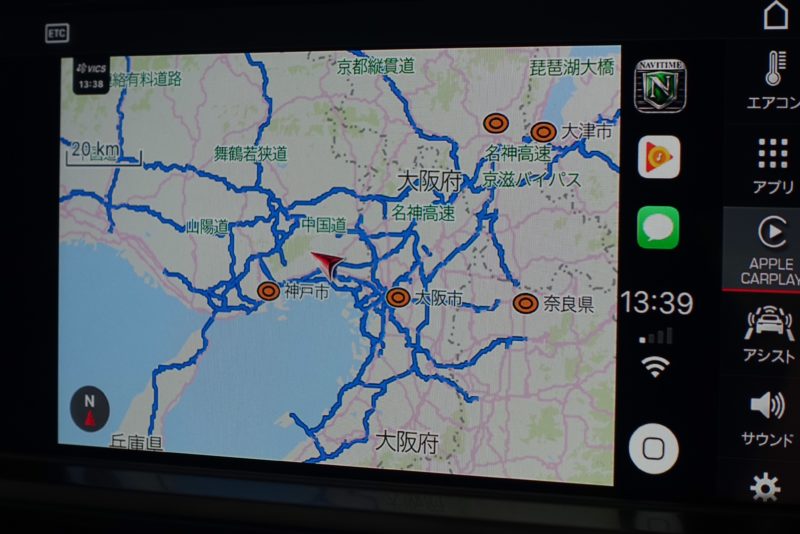
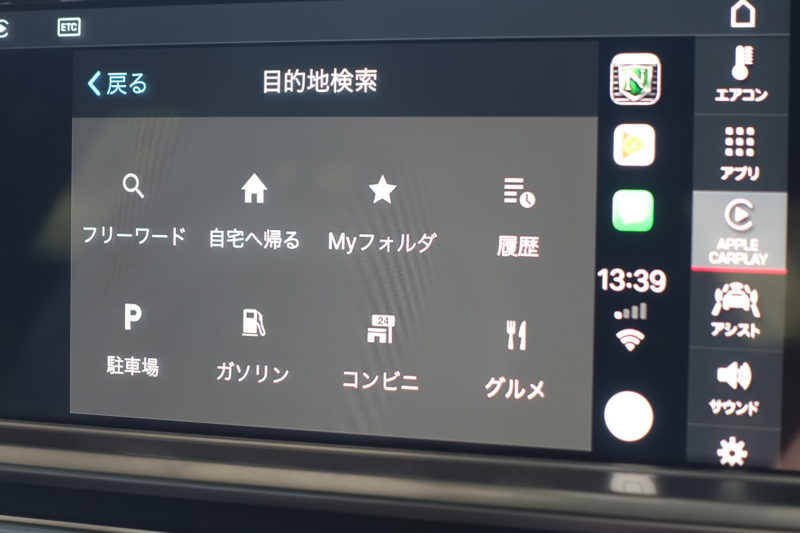
For destination searches, it offers familiar options like “Home,” “History,” and “Convenience store,” just like a regular navigation system.
We tried searching by keyword, but at the time, the system only accepted English (romanized) text.
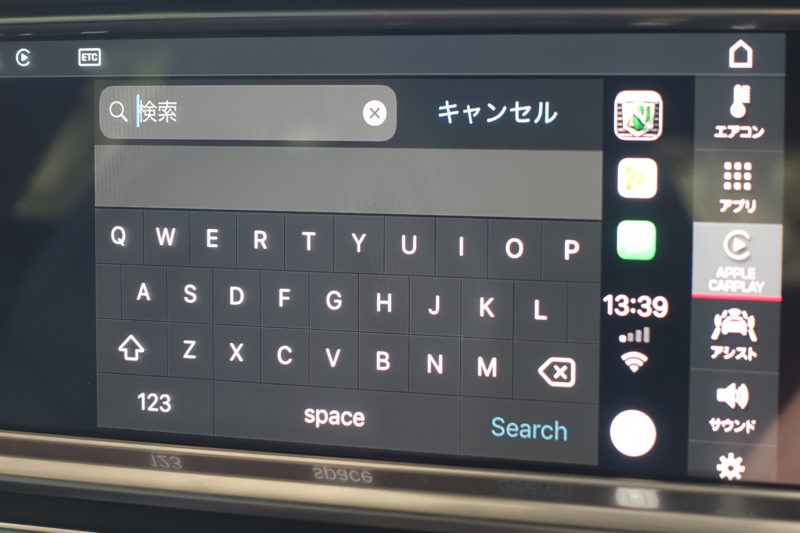
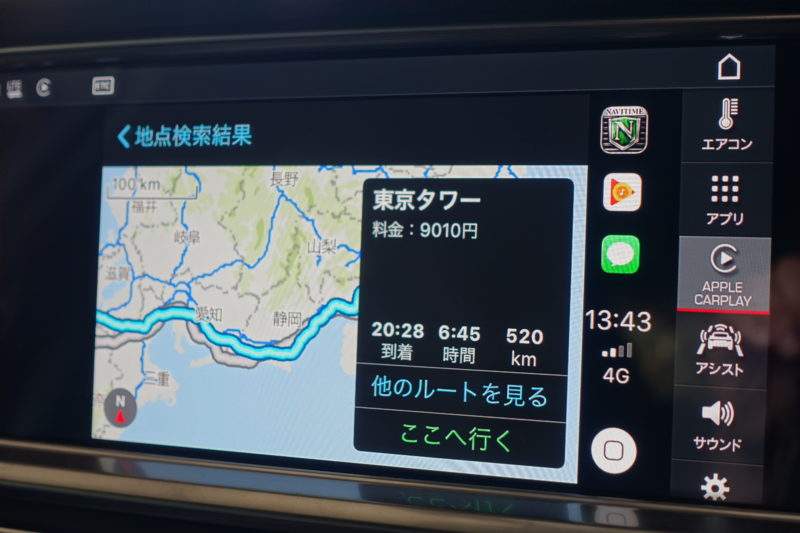
For now, you’ll need to enter the destination on your iPhone, and it will then appear on the car’s display. Here’s the route it suggested to Tokyo Tower.
In Any Case, Update to iOS 12!
More navigation apps may become compatible with Apple CarPlay, so it makes sense to choose the one that suits the situation. For example, Google Maps may direct you down unbelievably narrow roads in rural areas or the mountains—or even send you along a road that turns into a staircase!
So, using Google Maps in the city and another navigation app in the mountains could be a really handy way to go.
My husband’s take:
This update is revolutionary. Most people haven’t quite realized how significant it is yet, but I think it’s big enough to change the whole car navigation industry. Things are going to get really exciting from here.
We’re looking forward to future drives with a lot less navigation-related stress!
If you enjoy this blog, follow along.
Comment ( 0 )
Trackbacks are closed.
No comments yet.